


How to Install Tivimate on Phone & Tablet
Set up IPTV Canada on your phone or tablet with TiviMate. TiviMate is an Android IPTV player—install it, then add your playlist details to start watching live TV, sports, movies, and series.
Before you start
- TiviMate is only a player—it doesn’t include channels. You’ll need an active IPTV subscription.
- Keep your M3U or Xtream Codes login handy (host, username, password).
- Some ISPs in Canada may throttle streams—using a VPN can help stabilize IPTV Canada connections.
Install TiviMate on Android (Phone & Tablet)
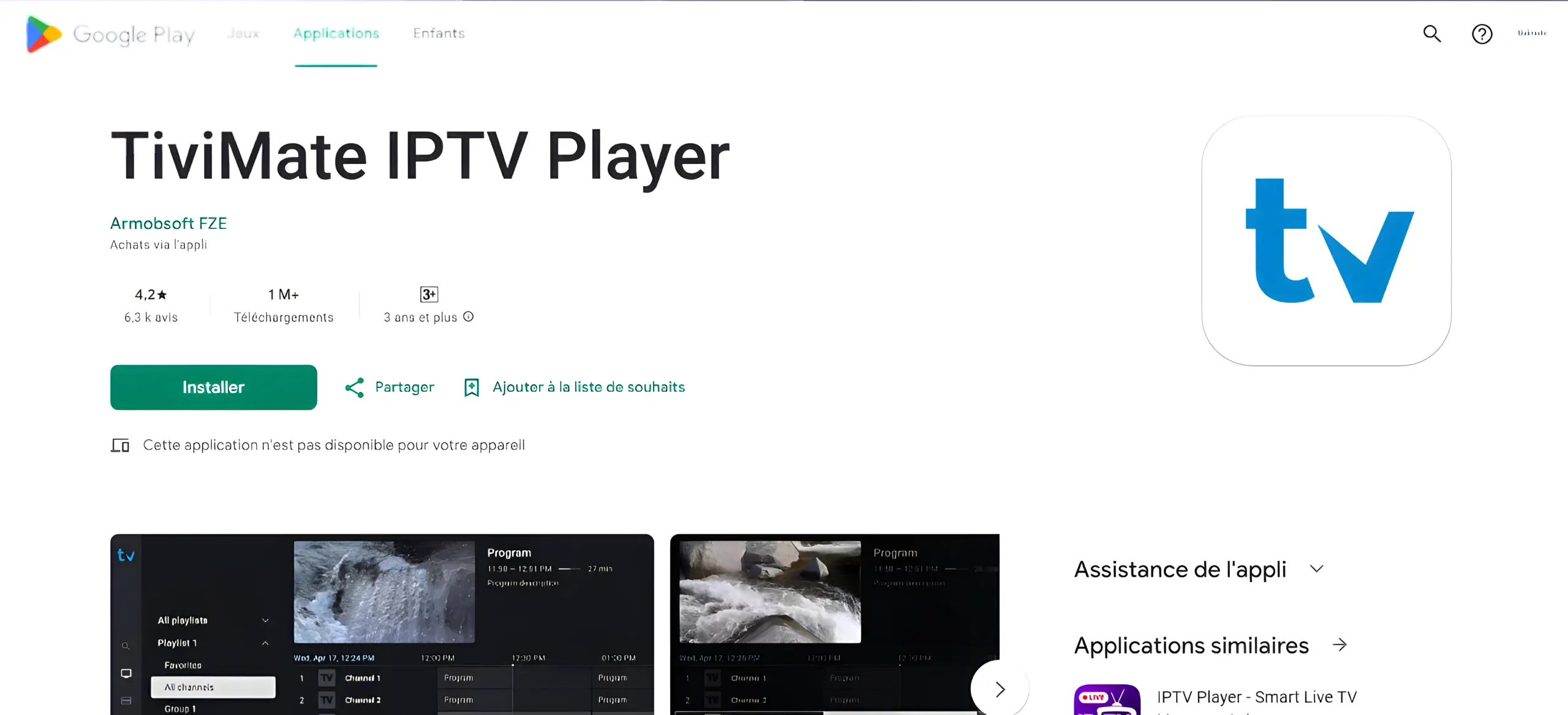
Method 1 — Google Play Store (recommended)
- Open Google Play and search for TiviMate IPTV Player.
- Tap Install and wait for setup to finish.
Method 2 — Official APK
Use this if TiviMate doesn’t appear in the Play Store on your device.
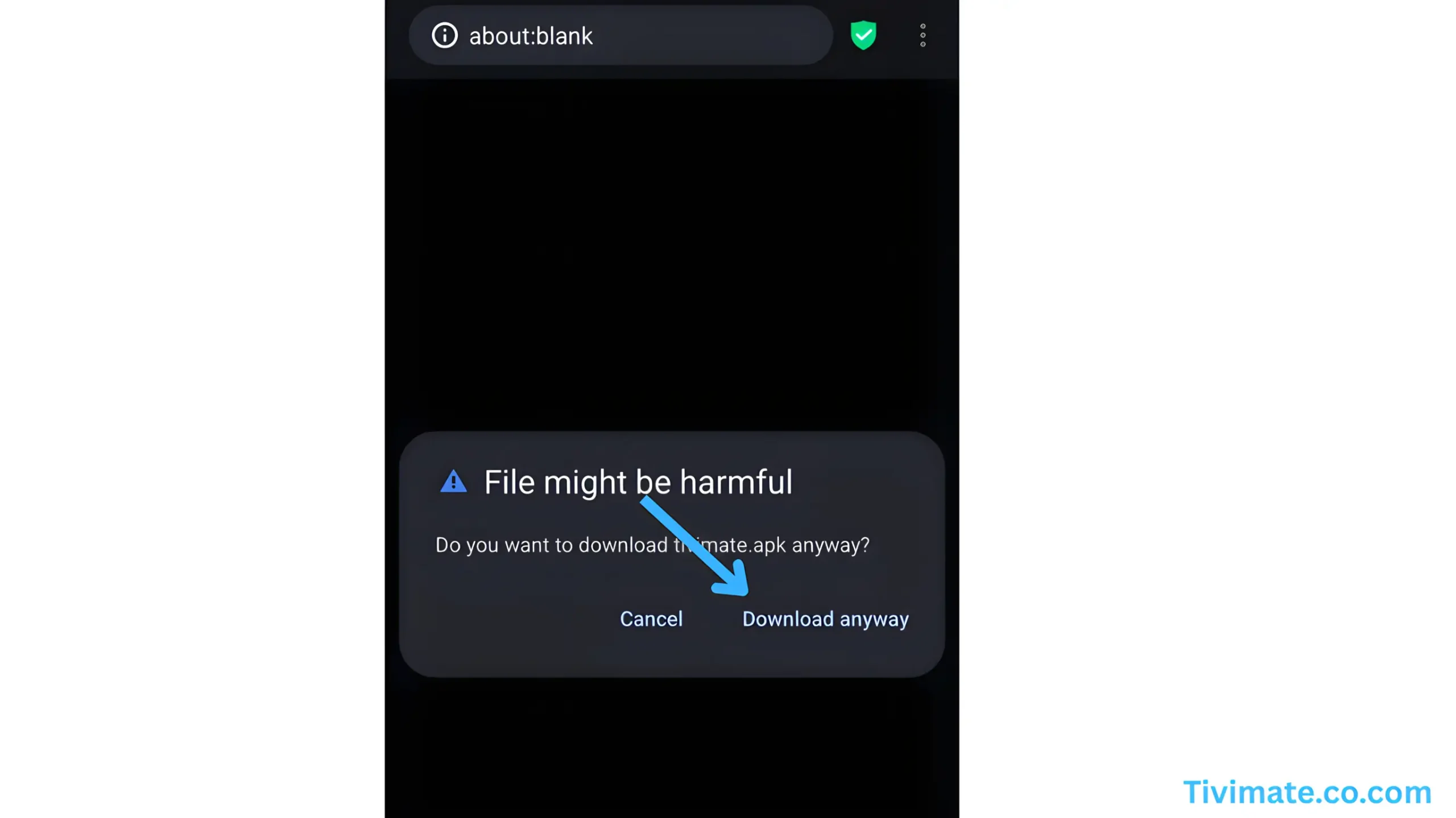
- Go to the official site: tivimate.com and download the APK.
- Allow installs from unknown sources if prompted.
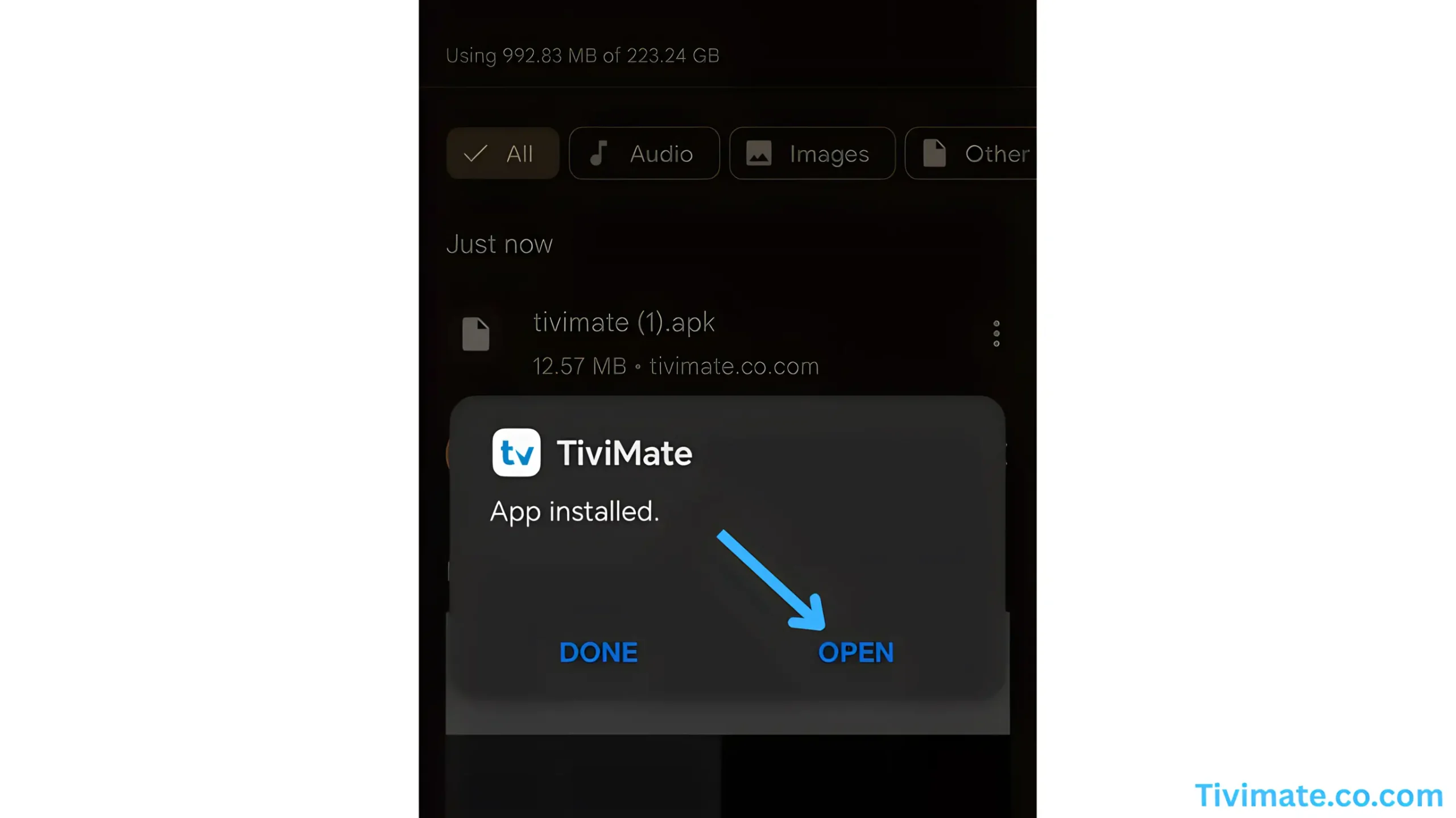
- Open the file to install TiviMate, then launch the app.
iPhone & iPad
TiviMate targets Android. On iOS, choose another IPTV player from the App Store—your IPTV Canada credentials still work with compatible apps.
Add your playlist
- Open TiviMate → Add playlist.
- Enter your M3U URL or Xtream Codes from your IPTV provider.
- Let channels load, open the guide (EPG), and start watching.
Quick tips for smoother streaming
- If you see buffering, try another VPN location, lower resolution, or switch to a 5 GHz Wi-Fi band.
- Keep TiviMate updated; if the app misbehaves, reinstall it.
- Wired/Ethernet or strong Wi-Fi improves IPTV Canada stability on mobile devices.
FAQs
Does TiviMate include channels or an IPTV service?
No—TiviMate is just the player. You need an active IPTV subscription and playlist details.
What’s the fastest way to start IPTV on Android?
Install TiviMate from Google Play, then paste your M3U/Xtream credentials from your IPTV Canada provider.
Is it safe to install the TiviMate APK?
Yes—if you get it from the official site tivimate.com. Avoid third-party APK sites.
Why do I see “invalid” when logging into TiviMate?
Double-check the host/username/password in your Xtream login and the exact IPTV M3U URL. Typos are common.
Free vs Premium—do I need TiviMate Premium?
Premium enables multiple playlists, advanced EPG, and layout options. The free version works for basic IPTV Canada use.
Can I use TiviMate on iPhone or iPad?
TiviMate focuses on Android. On iOS, use another player—your IPTV Canada credentials still work.
How do I add my IPTV playlist?
Open TiviMate → Add playlist → choose M3U URL or Xtream Codes → paste your details from your IPTV plan.
Best practices to reduce buffering on mobile?
Use 5 GHz Wi-Fi, test another VPN location, reduce stream quality, or temporarily try another player to compare IPTV Canada performance.
Where can I compare plans or get a trial?
See IPTV plans and offers. Credentials work with TiviMate on Android.
Does TiviMate support EPG?
Yes. After adding your playlist, the guide loads automatically if your IPTV Canada source provides EPG.
Can I import multiple playlists?
Yes—TiviMate supports multiple M3U/Xtream sources. Premium features offer better playlist management for IPTV power users.
What internet speed is recommended for IPTV?
For smooth IPTV Canada streaming, aim for stable 25 Mbps+ per stream (higher for 4K).
Disclaimer: TiviMate is a third-party IPTV player. Use only legal content and follow local laws.